Using Deal Alerts
Tell BrickSeek what you're shopping for, and get notified when a deal matches.
Using Deal Alerts
You don't have to keep checking BrickSeek to find the right deal.
Deal Alerts watch for deals on the brands and categories you care about, like LG refrigerators or laptops, and notify you when one meets your criteria. You decide what counts as a good deal, and BrickSeek does the checking.
What You Can Watch
You can create a Deal Alert for:
- A brand, like LG
- A category or subcategory, like Electronics or Laptops
- A brand within a category, like Apple Laptops
- A specific product, from its Product Page or an Inventory Checker
Creating a Deal Alert
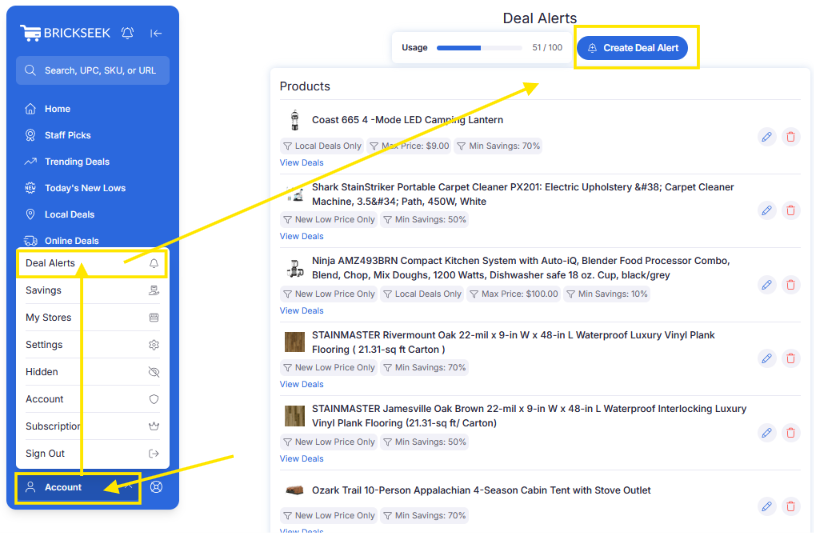
- Select Create Deal Alert on your Deal Alerts page (Account > Deal Alerts), next to the Usage meter.
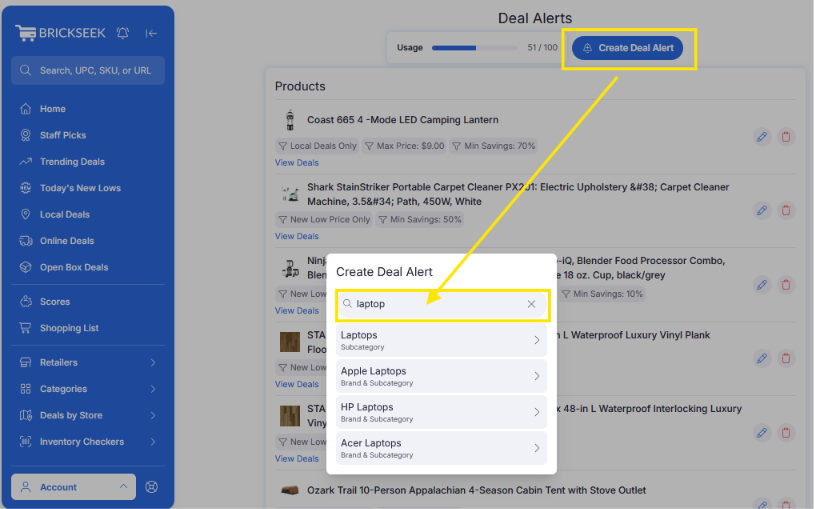
- Type what you're shopping for. Results show matching brands and subcategories, plus combinations like Apple Laptops.
- Select the result that fits best.
- Set your criteria (see the next section).
- Select Create Deal Alert.
Creating an alert takes less than a minute, and you don't need to find a specific product first.
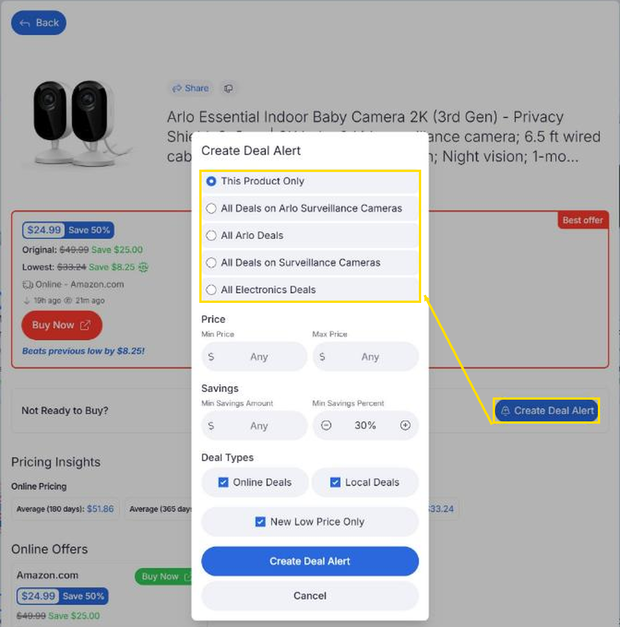
Starting from a Product Page or Inventory Checker? Select Create Deal Alert in the Not Ready to Buy? box, then choose what to watch: This Product Only, the brand within that subcategory, the brand, the subcategory, or the whole category. Options you already have are marked Already Enabled.
Setting Your Criteria
- Min and Max Price: Only alerts you to deals within this price range. Tip: set a max price that matches your budget.
- Min Savings Amount: Only alerts you when you'd save at least this many dollars. Tip: useful for expensive items, where a small percentage is still real money.
- Min Savings Percent: Only alerts you when the discount is at least this percentage (30% by default). Tip: raise it for clearance hunting, lower it for everyday essentials.
- Online Deals / Local Deals: Chooses where deals come from; Local Deals use your My Stores. Both are checked by default. Tip: uncheck Online Deals if you only shop in stores.
- New Low Price Only: Only alerts you when the price is the lowest BrickSeek has seen for that item, or tied with it. Tip: leave it on to keep alerts focused on the best opportunities.
If you set both a Min Savings Amount and a Min Savings Percent, a deal has to meet both to trigger an alert.

Getting the Right Number of Alerts
If you're getting too many alerts, raise your minimum savings, set a max price, or narrow your alert (Apple Laptops instead of Laptops).
If you're not getting any, lower your minimum savings, check both Online Deals and Local Deals, or choose a broader category.
Managing Your Alerts
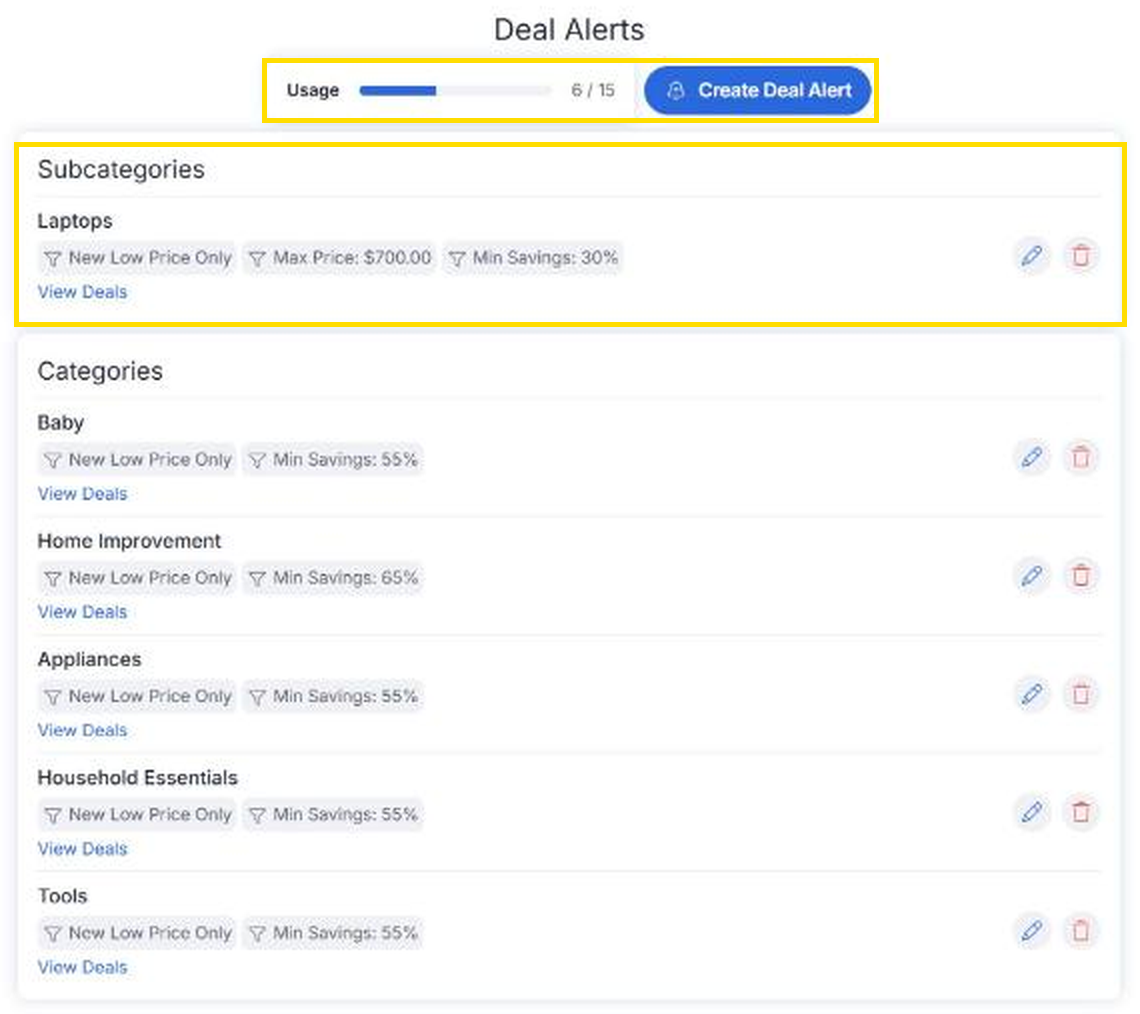
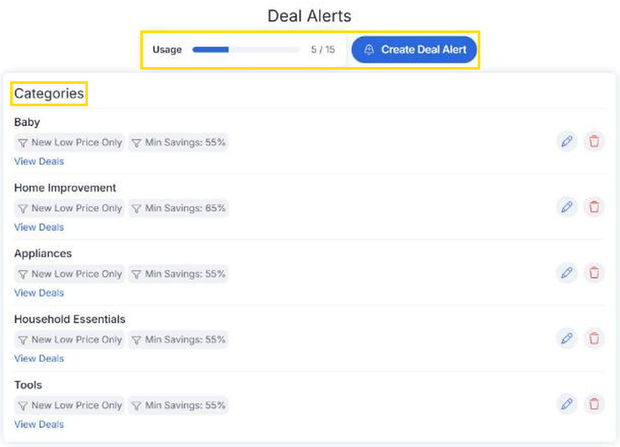
Your Deal Alerts page shows everything you're watching. Open it from Account > Deal Alerts. Alerts are grouped into Products, Brands, Subcategories, and Categories, and a Usage meter shows how many you've used. Select the pencil icon to edit an alert's settings, the trash icon to remove it, or View Deals to see current matches.
Shopping Lists vs. Deal Alerts
Shopping List: Save specific products you're interested in at your local stores.
Deal Alert: Let BrickSeek notify you when a deal matches what you're shopping for.
You can use either one on its own, or both together.
Pro Tips
- Start with a category, then narrow it if you get more alerts than you want.
- Pair a category with a max price for big purchases, like laptops under $700.
- Check Local Inventory before heading to the store.
- Remove alerts once you've made your purchase, so you have room for new ones.
Frequently Asked Questions
How many Deal Alerts can I create?
It depends on your membership. Premium includes 15 Deal Alerts and Extreme includes 100, and every alert type counts toward the same limit.
Do I need to find a product before creating an alert?
No. Search for a brand or category, and set your alert from there.
How will BrickSeek notify me?
By email, push notification, or both, depending on what you turn on under Account > Settings > Notifications.
Why haven't I received any alerts?
Your criteria may be strict. Try lowering your minimum savings or choosing a broader category.
Related Lessons