Managing Your Deal Alerts
Learn how to review, organize, and remove Deal Alerts so you're only keeping the alerts that matter to you.
Managing Your Deal Alerts
Your shopping priorities change over time, and your Deal Alerts should too.
The Deal Alerts page (Account > Deal Alerts) gives you a central place to review all of your alerts so you can keep everything organized and focused on what matters most.
Viewing Your Alerts
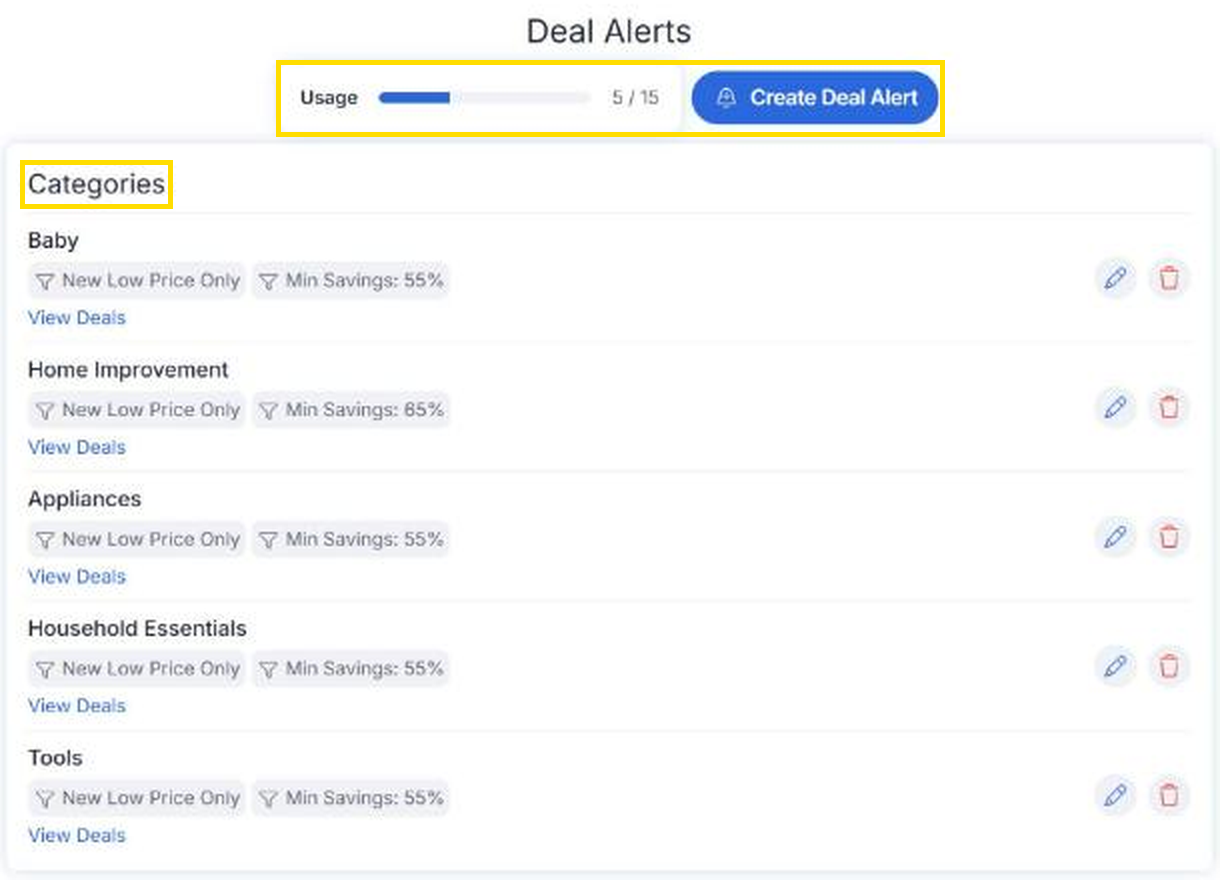
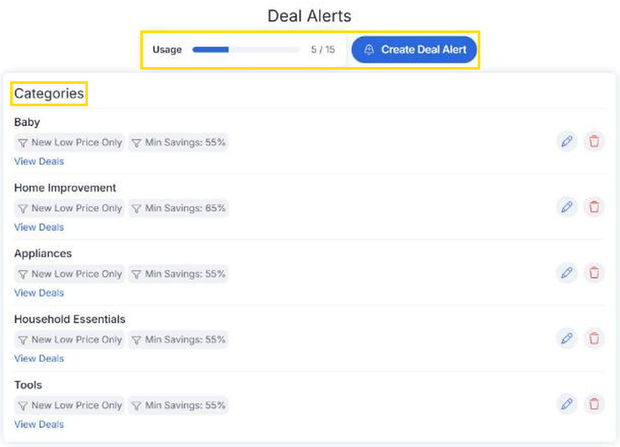
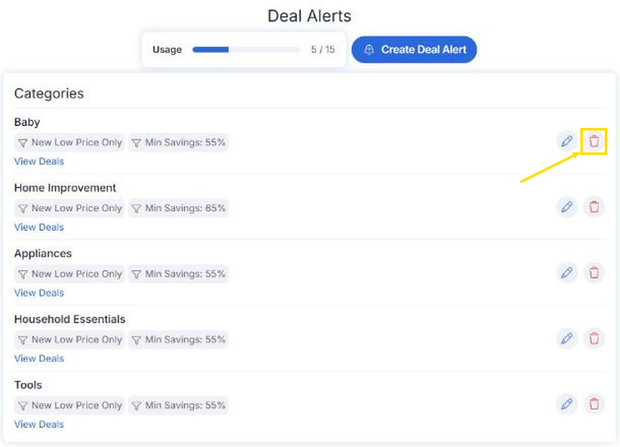
The Deal Alerts page displays every alert you've created, grouped into Products, Brands, Subcategories, and Categories. A Usage meter shows how many alerts you've used, and the Create Deal Alert button next to it lets you add a new one.
From here you can quickly:
- Review active alerts
- Select View Deals to see current matches
- Edit an alert's settings with the pencil icon
- Remove alerts you no longer need
Keeping your list current makes it easier to focus on the alerts that are most important to you.
Modifying An Existing Alert
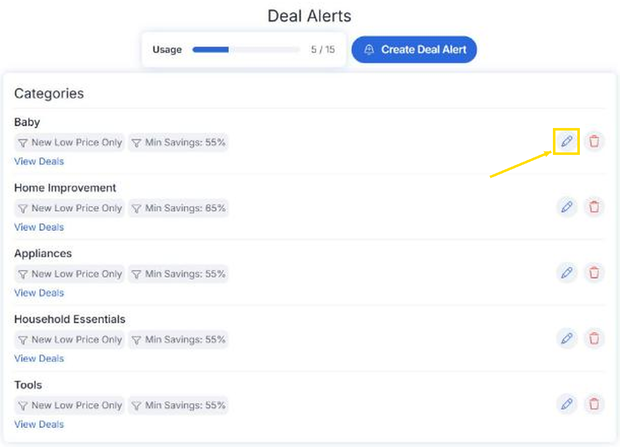
It is simple to modify an existing alert's criteria from the Deal Alerts page.
Select the pencil icon for the alert.
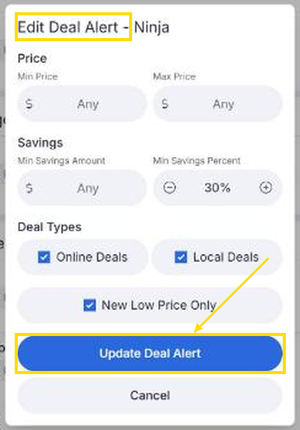
In the Edit Deal Alert window, change:
- Price range, if wanted
- Savings range, if wanted
- Deal Types: Online Deals, Local Deals, or New Low Price Only
- Select the blue Update Deal Alert
Remove Alerts You No Longer Need
Once you've purchased a product—or simply decide you're no longer interested—you can remove the alert.
Cleaning up old alerts helps ensure future notifications stay relevant.
Keep Alerts Focused
A well-maintained list of alerts is often more valuable than monitoring dozens of alerts for things you'll never purchase.
As your shopping needs change, take a few moments to review your alerts, modify or remove alerts that are no longer relevant.
Pro Tips
💡 Remove alerts after completing your purchase.
💡 Review your alerts periodically to keep them organized.
💡 Continue using your Shopping List for products you're researching and Deal Alerts for the brands, categories, and products you're actively monitoring.
💡 Don't be afraid to create a new alert later if your plans change.
Frequently Asked Questions
How do I stop receiving notifications?
Simply remove the Deal Alert from your active alerts list.
Can I create another alert later?
Absolutely. You can create the same Deal Alert again whenever you want.
Does removing a Deal Alert remove the product from my Shopping List?
No. Shopping Lists and Deal Alerts are separate features. Removing an alert does not remove the product from your Shopping List.
Related Lessons