Understanding the Savings Tracker
Learn how the Savings Tracker records your purchases and helps you see the value you've received from using BrickSeek.
Understanding the Savings Tracker
Every great deal tells a story.
The Savings Tracker (Account > Savings) helps you keep track of the products you've purchased through BrickSeek so you can see the value you've received over time.
Instead of trying to remember every deal you've found, your Savings Tracker provides a single place to review your purchases and celebrate your savings.
How Purchases Are Added
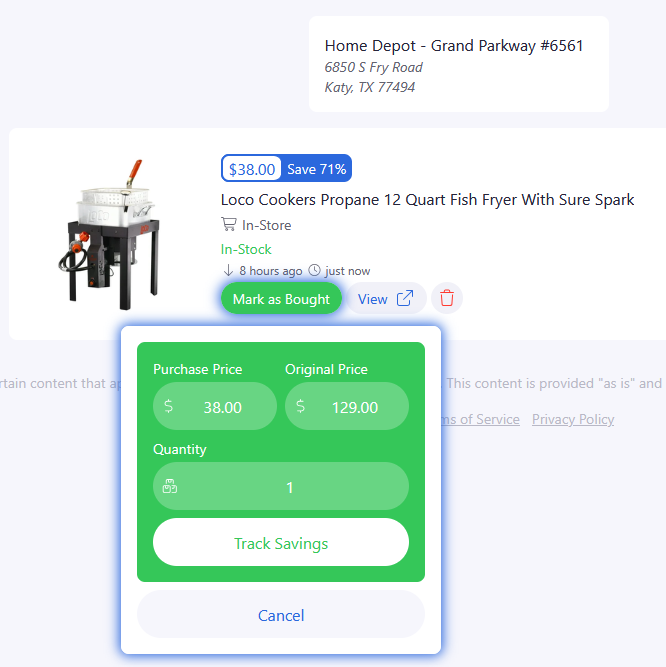
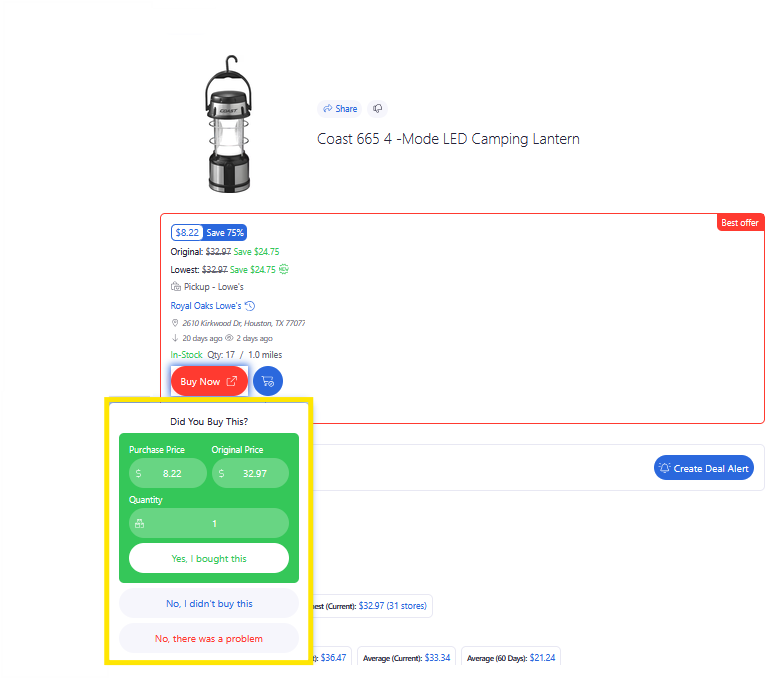
Products are added to your Savings Tracker when you select Mark as Bought on your Shopping List. On a Product Page, BrickSeek may also ask Did You Buy This? after you select Buy Now. Select Yes, I bought this to record the purchase.
This creates a record of the item and the savings associated with that purchase.
Your Shopping List helps you organize products you're considering.
Your Savings Tracker keeps a history of the products you've actually purchased.
Why Use the Savings Tracker?
Over time, it can be difficult to remember every deal you've found.
The Savings Tracker gives you a simple way to review your purchase history and better understand the value you've received from your BrickSeek membership.
Whether you've purchased one product or one hundred, everything is organized in one place.
Reviewing Your Purchases
The Savings Tracker allows you to quickly review:
- Products you've purchased
- Purchase history
- Recorded savings
- Your All Time Savings and Savings this Month totals
It's your personal record of successful shopping using BrickSeek.

Keep Building Your History
Every purchase you record helps build a more complete picture of the value you've received over time.
The more consistently you mark products as bought, the more meaningful your Savings Tracker becomes.
Pro Tips
💡 Mark purchases soon after buying them.
💡 Review your Savings Tracker periodically to see how your savings add up over time.
💡 Continue using your Shopping List to organize future purchases.
💡 Deal Alerts and Shopping Lists work together to help create a complete shopping history.
Frequently Asked Questions
How do purchases appear in my Savings Tracker?
Products are added when you select Mark as Bought on your Shopping List, or Yes, I bought this when a Product Page asks Did You Buy This?
Does every purchase appear automatically?
Only purchases that you record by marking them as bought are added to your Savings Tracker.
Related Lessons